LESSON #2: DIVING IN
You’ll Teach More Things Inside This Lesson
Look at you, moving right through this example course like a CHAMPION! 🏆⭐ If there was a wooden plaque we handed out for Excellent Follower of Directions, you would get that plaque!
We covered a few Teachery Basics in the previous lesson, but now let’s dive deeper into a few more specifics that will help you use Teachery.
Remember, this is a great example of how you might use this lesson to continue to teach whatever awesome skill you’re teaching your customers!
Diving In #1: Course Editor vs Course Preview

As we mentioned in the last lesson, if you’re seeing light blue editable text boxes, you’re in the Course Editor and can make tweaks, changes, etc. to your course content.
But, if you scroll up and look to the right of the purple Actions Menu button, you’ll see an icon that looks like this: ↗️. This button opens the Course Preview, which is what your customers will see when they interact with this specific page! It’s a great way for you (as the course creator) to clearly see what your customers will see. Click that ↗️ as often as your heart desires to make sure everything is looking great!
⚡Additional Teachery Tip: When you were in the Course Preview admiring this lesson, did you wonder how to navigate back to the Overview Page of your course? All you (or your customers) have to do is click the big header image at the top and it will take you right back to the Overview Page where you can see all your lessons!
Diving In #2: Lesson Resources Box

You may have noticed a fancy-schmancy floating box on the right side of a Lesson Page. This is the Lesson Resources Box and it has this neat superpower where it follows you down the page (when in Course Preview).
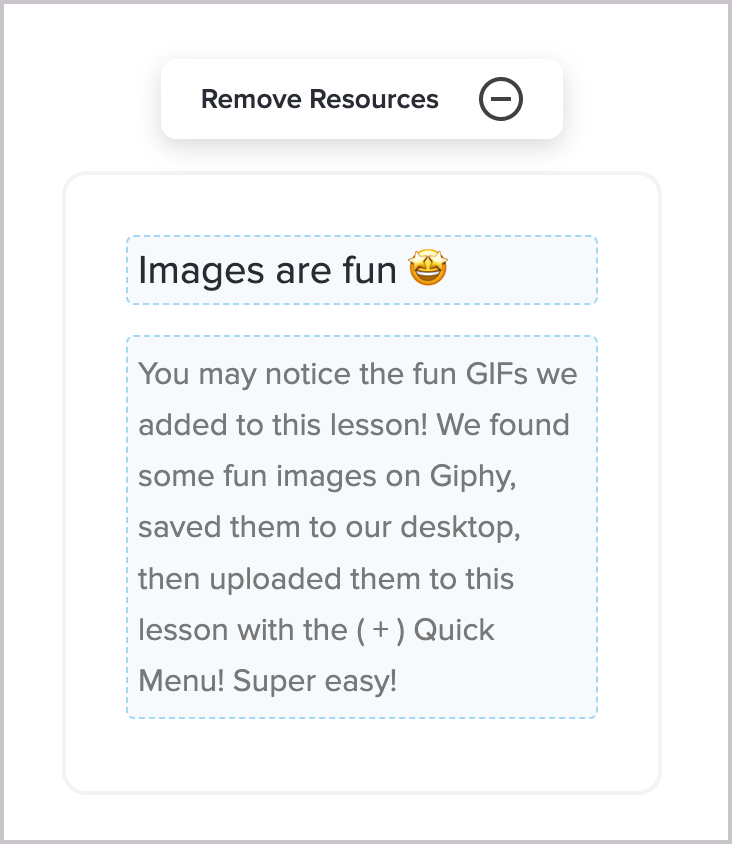
We see folks using this box for ALLLL kinds of fun stuff (a course creator bio, a link tree, contact info, upsells to different courses—the possibilities are endless!) At a minimum, though, we think it’s the perfect spot for a clear ACTION ITEM for the specific lesson someone is viewing. It’s also the perfect place to link to any helpful PDFs or other lesson-related downloads.
Diving In #3: Lesson Progress and Completed Lesson Button

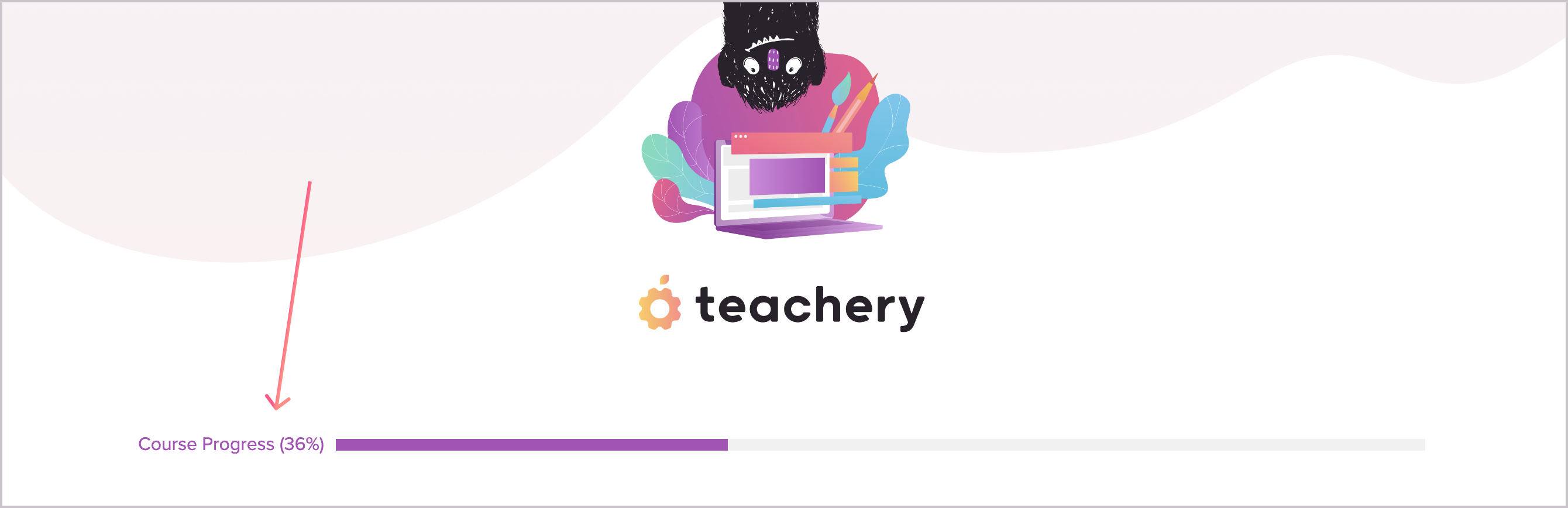
When you were on the Overview Page (two pages ago), did you notice the Progress Bar across the top? This is a handy little way for your customers to track what percentage of your course they’ve viewed! If you Preview this lesson right now, you’ll see the Progress Bar yourself*.
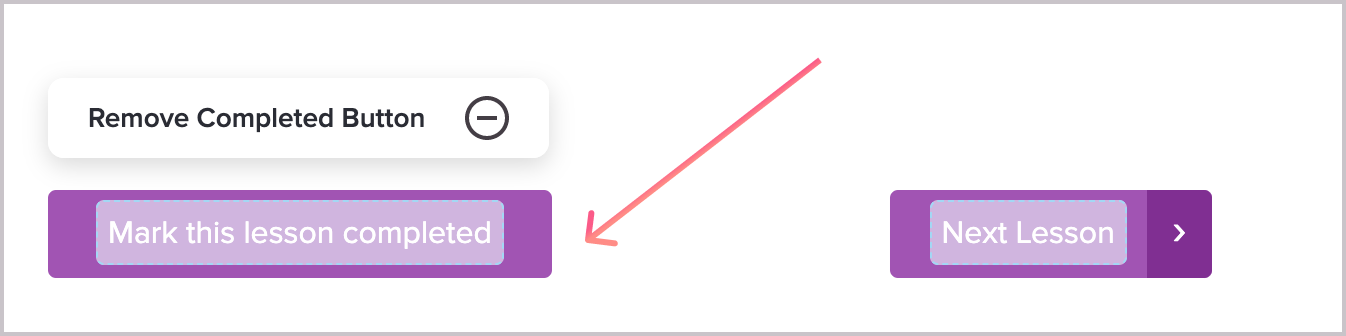
Different from course progress, we also have a Completed Lesson button you can toggle on/off at the bottom of every lesson! This button is a bit smarter and it actually triggers an email you can customize called the Course Completed Email (read more on that here).
*NOTE: The Progress Bar will NOT change for you, as the course creator, as you click through lessons, but just know it is always working for your customers!
At this point, you’re basically a Teachery Wizard 🧙♂️. Well, maybe more like a wizard’s apprentice? Let’s get you to Wizard-status by moving forward to the next lesson!
We covered a few Teachery Basics in the previous lesson, but now let’s dive deeper into a few more specifics that will help you use Teachery.
Remember, this is a great example of how you might use this lesson to continue to teach whatever awesome skill you’re teaching your customers!
As we mentioned in the last lesson, if you’re seeing light blue editable text boxes, you’re in the Course Editor and can make tweaks, changes, etc. to your course content.
But, if you scroll up and look to the right of the purple Actions Menu button, you’ll see an icon that looks like this: ↗️. This button opens the Course Preview, which is what your customers will see when they interact with this specific page! It’s a great way for you (as the course creator) to clearly see what your customers will see. Click that ↗️ as often as your heart desires to make sure everything is looking great!
⚡Additional Teachery Tip: When you were in the Course Preview admiring this lesson, did you wonder how to navigate back to the Overview Page of your course? All you (or your customers) have to do is click the big header image at the top and it will take you right back to the Overview Page where you can see all your lessons!
You may have noticed a fancy-schmancy floating box on the right side of a Lesson Page. This is the Lesson Resources Box and it has this neat superpower where it follows you down the page (when in Course Preview).
We see folks using this box for ALLLL kinds of fun stuff (a course creator bio, a link tree, contact info, upsells to different courses—the possibilities are endless!) At a minimum, though, we think it’s the perfect spot for a clear ACTION ITEM for the specific lesson someone is viewing. It’s also the perfect place to link to any helpful PDFs or other lesson-related downloads.
When you were on the Overview Page (two pages ago), did you notice the Progress Bar across the top? This is a handy little way for your customers to track what percentage of your course they’ve viewed! If you Preview this lesson right now, you’ll see the Progress Bar yourself*.
Different from course progress, we also have a Completed Lesson button you can toggle on/off at the bottom of every lesson! This button is a bit smarter and it actually triggers an email you can customize called the Course Completed Email (read more on that here).
*NOTE: The Progress Bar will NOT change for you, as the course creator, as you click through lessons, but just know it is always working for your customers!
At this point, you’re basically a Teachery Wizard 🧙♂️. Well, maybe more like a wizard’s apprentice? Let’s get you to Wizard-status by moving forward to the next lesson!