
LESSON #1: THE BASICS
Begin Teaching Your Amazing Skill Here

Oh hey, welcome to the first actual lesson of this example course! In this lesson, we’ll go over the basics of creating Teachery Lessons.
When creating your own course, this first lesson is a great chance for you to offer an overview of any basic topics your student needs to know to establish a foundation for your course. For example, we're now going to share some foundational tips on how to use Teachery!
Teachery Basic #1: Content editing
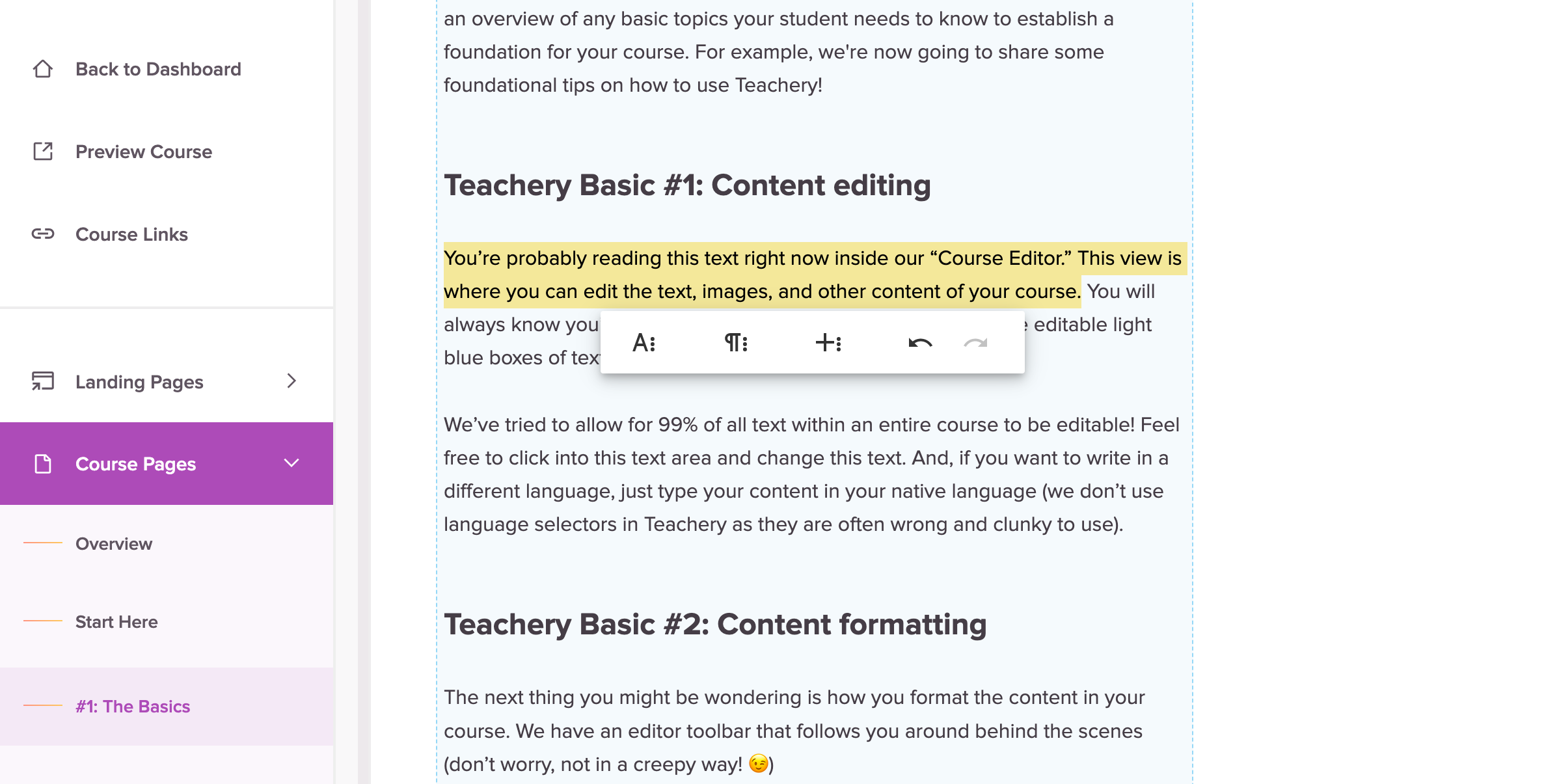
You’re probably reading this text right now inside our “Course Editor.” This view is where you can edit the text, images, and other content of your course. You will always know you’re inside the Teachery Course Editor if you see editable light blue boxes of text.
We’ve tried to allow for 99% of all text within an entire course to be editable! Feel free to click into this text area and change this text. And, if you want to write in a different language, just type your content in your native language (we don’t use language selectors in Teachery as they are often wrong and clunky to use).
Teachery Basic #2: Content formatting
The next thing you might be wondering is how you format the content in your course. We have an editor toolbar that follows you around behind the scenes (don’t worry, not in a creepy way! 😉)
If you click into an editable text area with the blue box, and hit the Enter/Return key on your keyboard ⌨️ you’ll see a ( + ) symbol pop up. 👇 It looks like this:

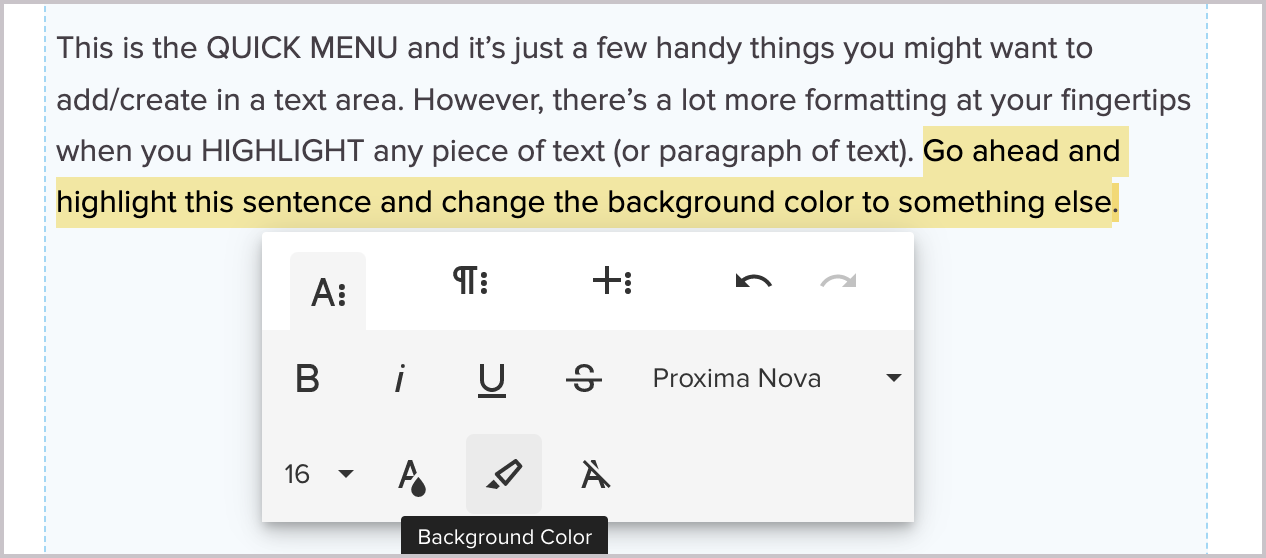
This is the QUICK MENU and it’s just a few handy things you might want to add/create in a text area. However, there’s a lot more formatting at your fingertips when you HIGHLIGHT any piece of text (or paragraph of text). Go ahead and highlight this sentence and change the background color to something else.
Teachery Basic #3: The Actions Menu
If you scroll up, you’ll see a lovely purple button that we affectionately refer to as the “Actions Menu.” This button will always house more actions you can take on whatever page you’re editing inside Teachery (whether it’s a Lesson Page, Overview Page, Payment Page, Landing Page, etc).
Go ahead and click the Actions Menu button at the top of this lesson to see what treasures await you! 💎🏴☠️

Ready to move forward? Since you’re probably still in the Course Editor, click the next lesson in the sidebar to the left to check out Lesson #2.
When creating your own course, this first lesson is a great chance for you to offer an overview of any basic topics your student needs to know to establish a foundation for your course. For example, we're now going to share some foundational tips on how to use Teachery!
You’re probably reading this text right now inside our “Course Editor.” This view is where you can edit the text, images, and other content of your course. You will always know you’re inside the Teachery Course Editor if you see editable light blue boxes of text.
We’ve tried to allow for 99% of all text within an entire course to be editable! Feel free to click into this text area and change this text. And, if you want to write in a different language, just type your content in your native language (we don’t use language selectors in Teachery as they are often wrong and clunky to use).
The next thing you might be wondering is how you format the content in your course. We have an editor toolbar that follows you around behind the scenes (don’t worry, not in a creepy way! 😉)
If you click into an editable text area with the blue box, and hit the Enter/Return key on your keyboard ⌨️ you’ll see a ( + ) symbol pop up. 👇 It looks like this:
This is the QUICK MENU and it’s just a few handy things you might want to add/create in a text area. However, there’s a lot more formatting at your fingertips when you HIGHLIGHT any piece of text (or paragraph of text). Go ahead and highlight this sentence and change the background color to something else.
If you scroll up, you’ll see a lovely purple button that we affectionately refer to as the “Actions Menu.” This button will always house more actions you can take on whatever page you’re editing inside Teachery (whether it’s a Lesson Page, Overview Page, Payment Page, Landing Page, etc).
Go ahead and click the Actions Menu button at the top of this lesson to see what treasures await you! 💎🏴☠️
Ready to move forward? Since you’re probably still in the Course Editor, click the next lesson in the sidebar to the left to check out Lesson #2.