
SUBLESSON #1
Content Blocks — Videos 🎥
Welcome to our Sublesson about adding videos to course pages. As you’ve been reading through this example course and our previous lessons, you may have seen the “Add Content Block” button floating around (if you live life on the wild side, you MAY have even clicked the button to see what it does 😱👀).

Embedding your videos in Teachery is easy, and we’ll walk you through it with a few images just to help show off some additional ways you can customize your own lessons or sublessons in your course.
🚨 IMPORTANT NOTE: We do not host your videos here at Teachery, we simply allow you to embed them from any video host on the web! There’s a note at the bottom of this Sublesson with more info on why we made that choice.
Step #1: Click the Add Content Block button, then click Add Embed Code
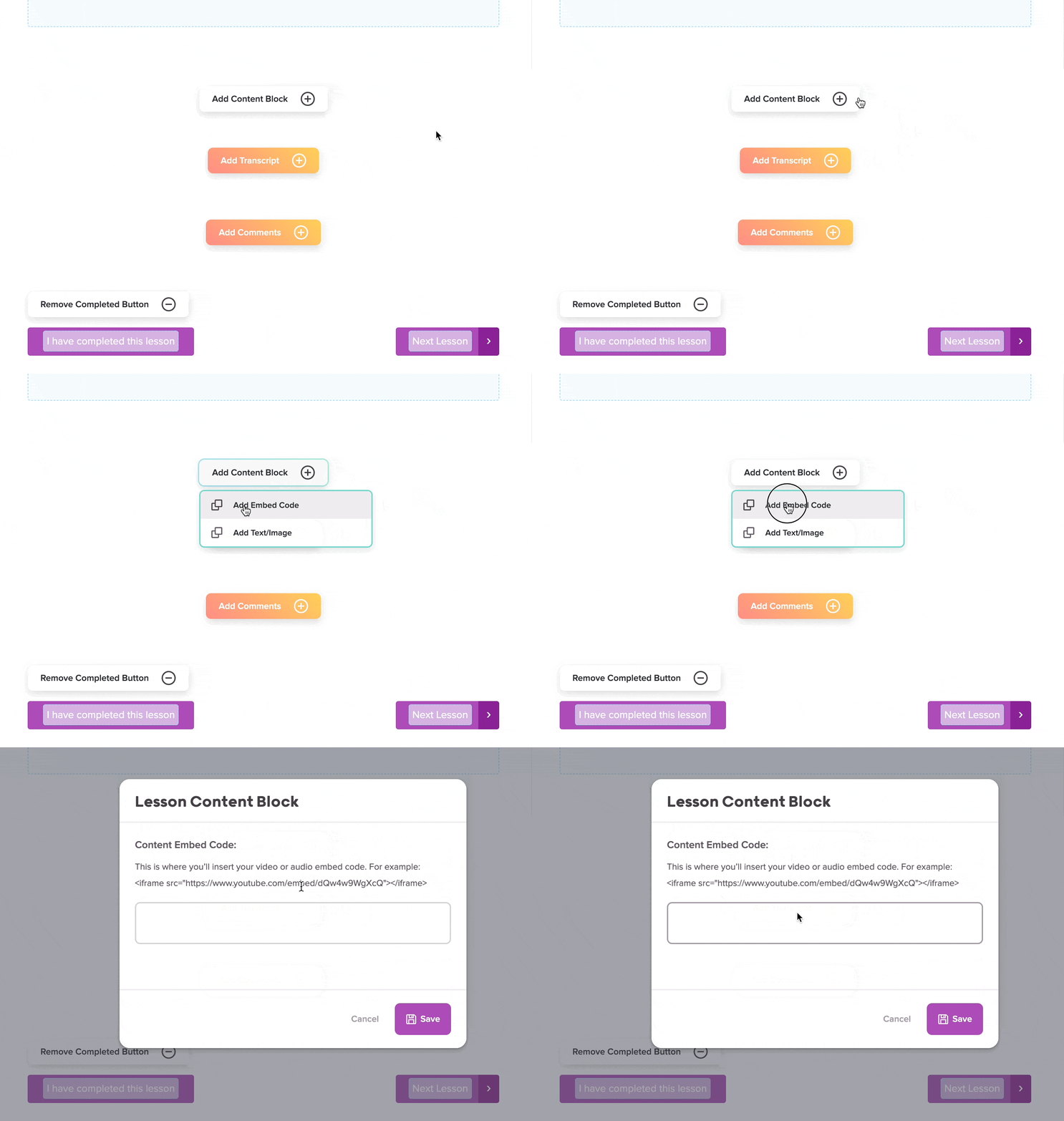
Step #2: In the pop-up modal window, paste your <iframe> or <script> code for your video.
Almost ALL video hosts these days offer responsive embed code as their default embed code. Paste that in and click the Preview Embed button that pops up!
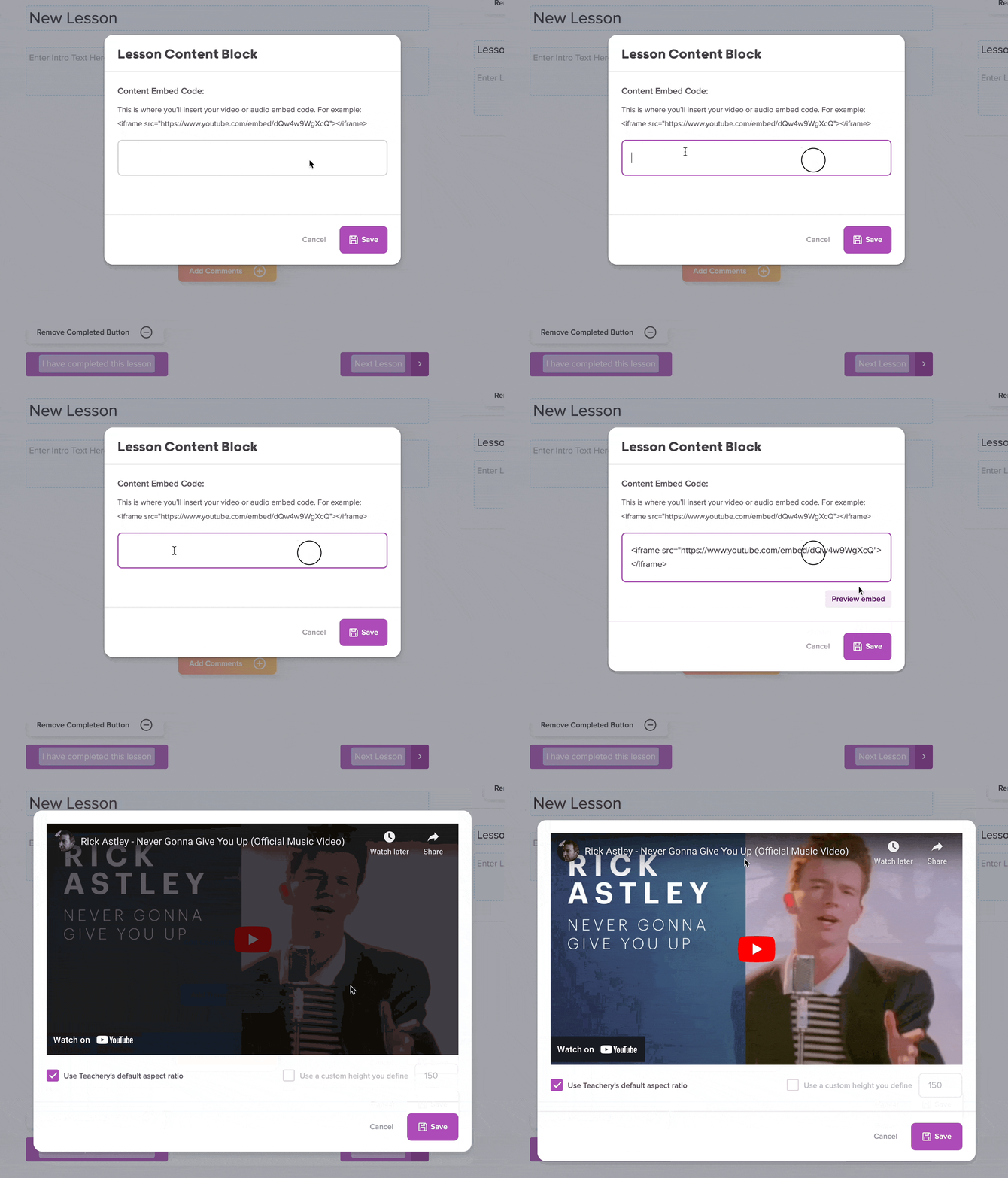
Step #3: When you’re previewing, just ensure the video looks right to you.
If it doesn’t, feel free to uncheck our aspect ratio box and add your own custom height (just be careful!) Hit Save when you’re done or Cancel if things look broken and you need to check your code.
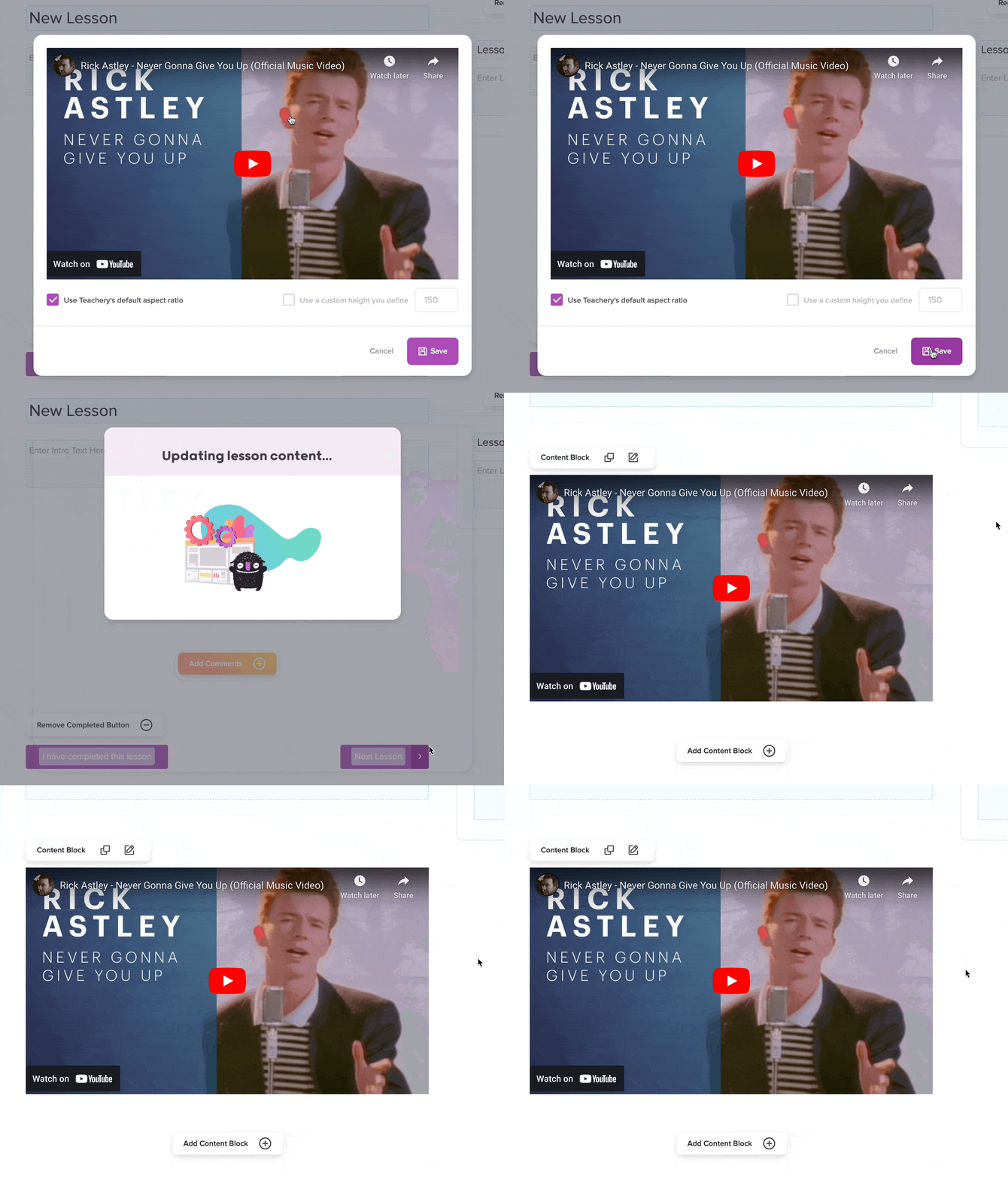
And here’s how the embedded video will look if you’ve followed those simple steps:
Embedding your videos in Teachery is easy, and we’ll walk you through it with a few images just to help show off some additional ways you can customize your own lessons or sublessons in your course.
🚨 IMPORTANT NOTE: We do not host your videos here at Teachery, we simply allow you to embed them from any video host on the web! There’s a note at the bottom of this Sublesson with more info on why we made that choice.
Almost ALL video hosts these days offer responsive embed code as their default embed code. Paste that in and click the Preview Embed button that pops up!
If it doesn’t, feel free to uncheck our aspect ratio box and add your own custom height (just be careful!) Hit Save when you’re done or Cancel if things look broken and you need to check your code.
And here’s how the embedded video will look if you’ve followed those simple steps:
If you want to read why we don’t host our own videos here at Teachery, you can jump into our full help doc here.